






Your Guide To Training With HumanGO
Welcome to HumanGO—your AI-powered path to smarter, more adaptable training.
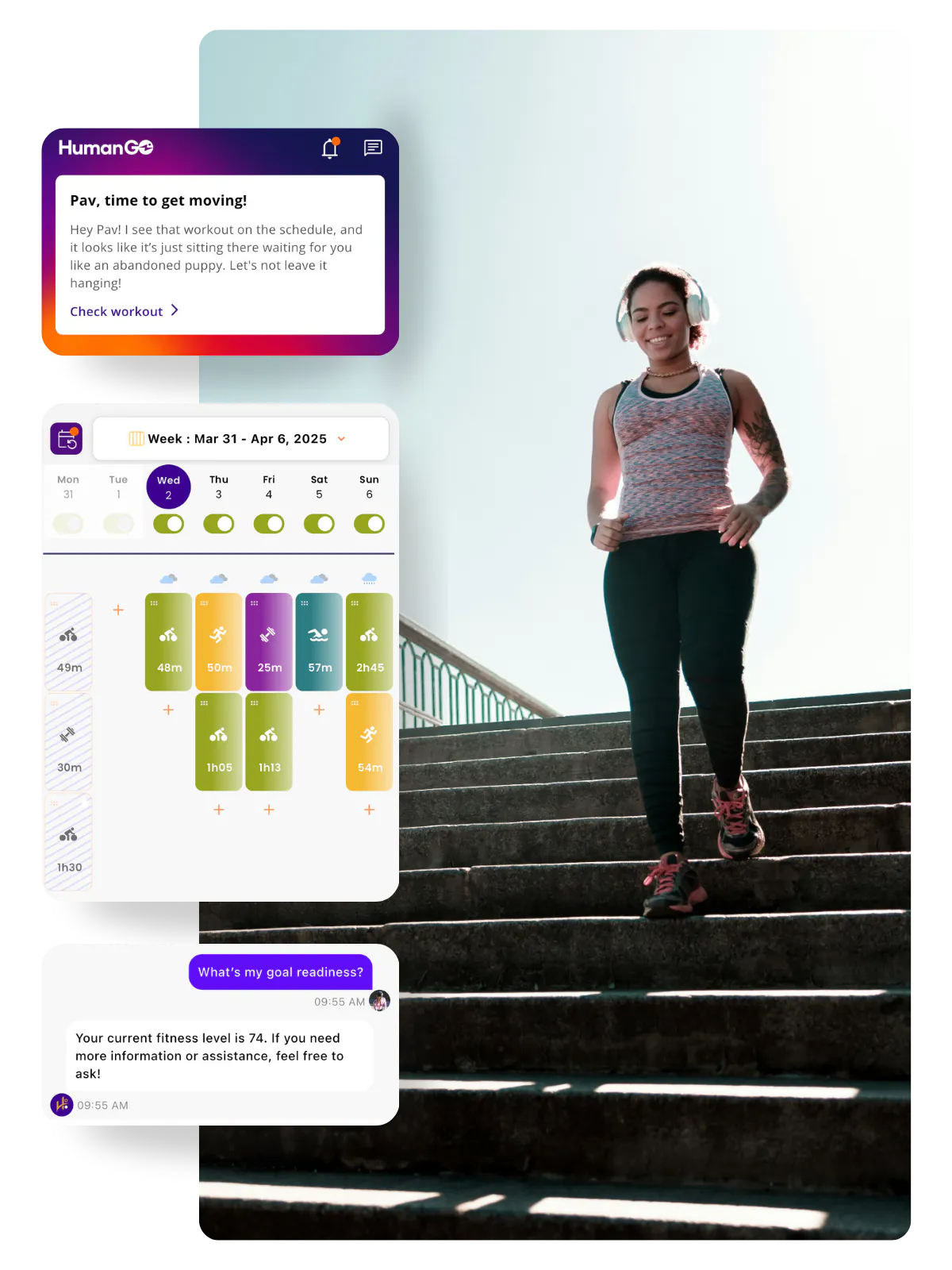
If you’re just getting started, these seven short lessons will walk you through everything you need to know: from connecting your devices to tracking your progress and learning how Hugo, your digital coach, adapts every workout around your life.
Follow the lessons in order or jump around. This builds your foundation for training success.
Jump Around
Lesson 1: Connecting Your Device(s) and Logging How You Feel
Lesson 2: Start Your First Workout
Lesson 3: Edit and Set New Goals
Lesson 4: Adjust Your Week When Life Happens
Lesson 5: Track Your Progress
Lesson 6: Get To Know Hugo
Resources
Lesson 1: Connecting Your Device(s) And Logging How You Feel
Here’s how HumanGO works:
- Create your goal (Start with: Participate in a race, challenge yourself, improve performance, or improve general fitness, then follow the prompts to get more specific).
- Connect your devices (e.g., Apple, Garmin, Wahoo, Zwift, Rouvy, etc.).
- Adjust your training schedule (e.g., hours, workout days, rest days, etc.).
- Wake up, open the app, log how you feel, and your workout is ready.
- Follow the prompts to warm up, work out, and cool down.
- Once you’re done, your workout automatically uploads to HumanGO.
If you miss a session, Hugo, your AI Coach, automatically readjusts your plan. Your progress builds one step at a time, safely and gradually.
First step: Connect your devices.
Second step: Log how you feel.

Both of these steps help Hugo learn from your workouts, detect fatigue, track your compliance, and make your plan fit your life.
Lesson 2: Start Your First Workout
Now that your devices are connected, it’s time to get moving. This is where your routine begins.
First step: Launch your workout (from different devices):
From the HumanGO mobile app: Under Workouts on the Home Screen, tap your workout, then tap “Start Workout.”
Apple Watch: Sync with HumanGO, then start from the Workout app.
Garmin: Click Training, then Workouts. Find your scheduled HumanGO workout in the list, click it, then click Ride to load the workout. Click the start button to start the ride.
Wahoo: Click the power button, go to planned workouts, select the workout of the day, then navigate back to the original screen, and press start to start the workout.
Zwift: Log in to Zwift, tap Workouts, then Custom, then HumanGO, and select your workout.
Second step: Let Hugo know how your workout went

- Tap your completed workout.
- Tap “How was your workout?”
- Mark how you felt, perceived exertion, and any notes.
Logging how your workout went lets Hugo know if you need any adjustments to your training plan (easier/harder workouts or more/less rest time).
And don’t worry about being perfect. This isn’t about hitting every number exactly. It’s about showing up. Because every time you start, you’re building the habit that will keep moving you forward.
Lesson 3: Edit and Set New Goals
Working out is easier to stick with when you have a goal. It’s even easier when that goal means something to you. Because when your motivation dips (and it will), reaching that goal will keep you going.
Ask yourself:
- Do I want to participate in a race?
- Do I want to challenge myself?
- Do I want to improve my performance?
- Do I want to improve my general fitness?
Open the HumanGO app and double-check your goal. If it doesn’t fit what you truly want, follow the prompts to specify your goal. Then Hugo will update your plan automatically.
Where To Find Goals

From The Plan Screen: Tap the calendar bar or tap the settings button in the bottom right corner, then tap ‘View Goals’.
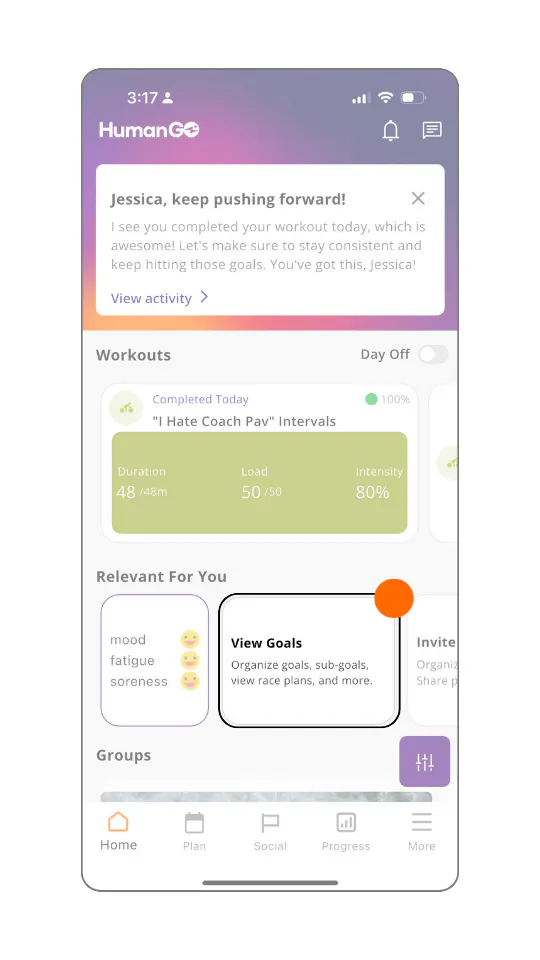
From The Home Screen: Tap ‘View Goals’ under ‘Relevant For You’
How To Set Goals
1. Tap the settings button in the bottom right.
2. Select Add Goal.
3. Choose the type of goal:
- Participate In A Race: Train for a running, cycling, or triathlon event
- Select your sport, then the event.
- Enter the event name, race date, and location.
- Select your target: Finish The Race, Challenge Yourself, or Be Competitive.
- (Optional) Add custom finish time, taper, and recovery days.
- Challenge Yourself: Take on a hike, bike-packing trip, or century ride
- Select your sport, then the event.
- Set the goal specifications, then enter the goal name and its date.
- Pick target: Finish The Race, Challenge Yourself, or Be Competitive
- (Optional) Add taper and recovery days.
- Improve Performance: Target specific areas, such as endurance, VO₂ max, or threshold.
- Select a focus area.
- Name your goal and select your start date.
- Adjust plan duration and choose difficulty.
- Improve General Fitness: Improve your fitness, maintain your fitness, or lose weight
- Select an area to focus on.
- Name your goal and select your start date.
- Set duration and intensity level.
4. Tap Save to lock in your goal and generate your training plan.
How To Edit An Existing Goal
Edit Overview (Goal name, date, location)
- Tap Edit Goal.
- Tap the pencil icon to change the name, date, location, and target.
- Tap Done to save.
Edit Goal Phases (Training methodology)
- From the Goal Overview screen, tap Phases.
- Edit or Delete phases.
Note: This is a more advanced setting, so if you need help, watch Coach Pav’s walkthrough.
Edit Sub Goals (Supporting goals)
- From the Goal Overview screen, tap Sub Goals.
- Find your main goal, then tap Add Sub Goal.
Note: This is a more advanced setting, so if you need help, watch Coach Pav’s walkthrough.
Edit Race Plan (Predicted finish time, pacing)
- If your goal is a race or event, you can create a race plan to see your predicted finish time and a pacing plan to reach it)
- From the Goal Overview screen, tap Race Plan.
- Tap Generate Race Plan.
- Upload a .FIT file of the course (if you have one) and complete the empty fields.
- Tap Generate Plan.
Lesson 4: Adjust Your Week When Life Happens
Working out isn’t about perfection. It’s about consistency. And being consistent means adjusting when life tries to derail your plans. Work runs late, you have family obligations, life’s always throwing unexpected obstacles your way.
But here’s the secret: you’re not stuck with a static plan.
Within HumanGO, you have several ways to create a training schedule that works for you: Make changes on the fly, edit your default training week (tied to your goal), create a customized training week (tied to a single week), and adjust for illness, injury, or recovery.
Let’s cover each separately, its purpose, and when to use each one.
Default Training Week
Think of your Default Training Week as the foundation of your plan. When you set your main goal, Hugo automatically builds a balanced week of workouts based on your fitness level, available time, and the sports you’re training in.
You can edit your Default Training Week whenever your schedule changes, or whenever you want to adjust the number of sessions and duration of workouts in your regular training week.
When to use it:
Use your default training week when you want to set your standard training routine, such as the days you train, which sports you include, and how many hours you can commit each week.
For minor adjustments (like moving one workout or swapping a rest day):
- From the Plan Screen, drag and drop workouts to new days, toggle training days on/off, or tap a workout to modify or delete it.
- Hugo will remember your changes even after replanning.
How to adjust your default training week:
1. From the Plan Screen, tap the purple settings icon at the bottom right.
2. Tap “Edit Default Training Week.”
3. Tap the wizard wand icon to launch the setup wizard.
4. Follow the steps to:
- Set your maximum weekly training hours.
- Choose how many sessions per sport you’d like.
- Select which days you’re available to train.
5. Save your changes, and Hugo will automatically rebuild your plan to match.
Customized Training Week
A Customized Training Week lets you tweak multiple or individual weeks when your schedule shifts temporarily. Maybe you’re traveling, you want to focus on one sport, or have more time to train.
It’s perfect for when life doesn’t follow your default schedule. You can make changes to one week or apply changes across several weeks at once, without affecting your progress towards your goal.
When to use it:
Use this if your schedule temporarily changes. For example, if you’re on vacation, on a business trip, or have a rotating work schedule.
How to edit a customized training week:
- Go to the Plan Screen.
- Tap the purple calendar icon to the left of the calendar bar.
- Move, add, change, or delete workouts as needed, or tap the wizard wand icon to start the wizard.
How to edit several customized training weeks:
- Select “Customize Multiple Weeks.”
- Choose your goal from the dropdown menu.
- Select which weeks you want to adjust, then tap Next.
- Move, add, change, or delete workouts as needed or tap the wizard wand icon to start the wizard.
- Save your changes. (You can always reset back to default later.)
Tip: You can even name your customized week. This is helpful if you want to label it something like “Vacation Week” or “Base Build.”
Adjusting for Injury, Illness, or Recovery
When you log an injury, illness, or recovery period, HumanGO will automatically lower the intensity of your sessions or remove them from your schedule for that time frame. It doesn’t replace missed training, but it keeps your plan aligned with how you feel so you can return safely and steadily.
When to use it:
If you’re sick, injured, or simply need to rest more than usual, use this tool to let Hugo know that your training load should decrease.
How to make quick adjustments:
- From the Plan Screen, tap the purple settings icon.
- Tap “Add,” then select your condition (injury, sickness, or recovery).
- Set the duration and what level of training you can do during this period.
- Save your changes, and Hugo will adjust your plan accordingly.
You can use these tools whenever you need them, but it’s not required. Hugo constantly monitors your completed workouts and adjusts for you, so all you have to do is show up and exercise.
Lesson 5: Track Your Progress
Progress builds slowly, so it’s hard to notice the day-to-day changes. But when you track it, you’ll see how much you’re changing.
Here’s what you’ll find:
1. Aerobic & Metabolic
See how your endurance is building over time by tracking your max heart rate, running pace, and TPO (a.k.a threshold power—the highest average power you can hold for an hour before fatigue sets in).
2. Body Composition
This displays your weight, body fat, bone mass, and muscle mass (pulled from connected devices or manual entries). Use this to track trends, not day-to-day fluctuations (because everyone has those “fluid retention” days).
3. Sleep
Poor sleep means slower recovery, which means a higher risk of burnout. This screen shows sleep duration and quality from your wearable. Use this to check for patterns and see if you’re getting enough sleep.
4. Health Metrics
This screen includes key markers like resting heart rate, HRV (heart rate variability), and daily perception (that daily check-in we told you about in Lesson 1). Hugo uses these metrics to keep you from overtraining.
5. Goal Stats
This screen connects the dots between today’s workout and achieving your goal. You’ll see your fitness chart, time planned and time spent in training zones, and your workout compliance. Use this information to measure your progress toward your goal.
- Compliance = How often you’re staying within the prescribed zones in your workouts.
- Current Readiness = How prepared you are today, as if your Goal date were today.
- Projected readiness = How prepared you will be on your Goal date, assuming you follow your training plan.
6. Activity Stats
See your total activities, duration, distance, ascent, pace/power, and cardio efficiency here. It shows your activity metrics by heart rate decoupling and efficiency factor, your peak stats, and activity perception (that post-workout check-in we told you about in Lesson 2).
On days when motivation is low and you’re wondering if it’s worth it, check these screens. They’re reminders that your consistency is paying off.
Lesson 6: Get To Know Hugo
Hugo is your 24/7, 365-days-a-year coach inside the app. Multilingual and context-aware, Hugo can answer questions about your metrics, nutrition, hydration, and training goals.
Hugo has access to the Help Center and will answer your questions directly in the chat. Hugo will take into consideration useful information about you to generate the most adapted answer, like your age, gender, current phase, next goal, etc.
Hugo can read the calendar
Hugo has access to your training plan, and you can ask the following questions:
- Race or goals
- Workouts
- Injury event, Sickness event, or Days off
- Phases (base, taper, build, peak, recovery, adaptation)
If the list of events is too big, Hugo will list the first items and ask you if you want to know more.
Example:
"When is my next cycling workout?"
Hugo can read the metrics
You can ask Hugo to give the current value of the following metrics:
- Fatigue (AWL)
- Fitness (CWL)
- Weight
- Height
- Body fat
- Resting heart rate
- Max heart rate for running, cycling, and swimming, and also the general value
- Threshold power for running and cycling
- Threshold pace for running and swimming
Example:
"What is my running threshold pace?"
Update the metrics
You can ask Hugo to modify the value of the following metrics:
- Fatigue (AWL)
- Fitness (CWL)
- Weight
- Height
- Body fat
- Resting heart rate
- Max heart rate for running, cycling, and swimming, and also the general value
- Threshold power for running and cycling
- Threshold pace for running and swimming
Example:
“Set my weight to 70 Kg.”
“Update my running TPA to 5:30 (This will be understood as 5min 30sec per kilometer or per mile, depending on the athlete's measurement system (metric or imperial)).”
Schedule some days off
Hugo can modify your schedule to add some days off. You will be asked to give the list of dates you want off. You are asked to confirm, and a replan is launched to take the changes into account.
Example:
“I need days off until Friday.”
Launch a replan
You can replan your schedule for a period of time. You are asked to confirm.
Example:
“Replan from tomorrow until the end of the month.”
Manage fatigue
If you are feeling fatigued, Hugo will adjust your training accordingly by temporarily reducing your training load for a period of time. You can choose if you want to launch the replanner or not.
Example:
“I am feeling tired.”
Add a goal
First, Hugo asks for the category of the goal among:
- Triathlon
- Fitness
- Running
- Duathlon
- Cycling
- Swimrun
- Aquathlon
Then you need to select the name of the corresponding goal and give a date. During the workflow, you can ask for additional information about each goal.
Example:
“Schedule a new goal please.”
Add an injury
You can report an injury to Hugo. At the beginning of the conversation, Hugo will say that if you want to edit the content of the scheduled workout (e.g., change the sports), you need to go to the Availability menu.
You can ask to keep the training or cancel the workouts, and you will need to give the day that you think you will resume your training. If you want to keep training, you will be asked if you want to reduce the intensity.
Example:
“I sprained my ankle and can't train anymore.”
Add a sickness
You can report an injury to Hugo. At the beginning of the conversation, Hugo will say that if you want to edHugo will first ask if the sickness is serious or mild. Hugo also explains that a mild illness means we can keep their training at low intensity, while a serious one means no training at all. Then, it will ask the date when you’d like to resume training.it the content of the scheduled workout (e.g., change the sports), you need to go to the Availability menu.
Example:
“I am sick.”
Add a test workout
Currently, Hugo can only schedule a test workout. It will first ask the category of test:
- Threshold
- Max heart rate
- Hugo Recalibration Test
Then you will specify the sport and give a date. If relevant, Hugo will suggest a date for the test.
Example:
“Schedule a new test please.”
Hugo feedback
Hugo can give you feedback in certain places.
- After you complete a workout, Hugo will analyze the data instantly and provide this feedback within the completed activity card. You can view this by opening the workout from the homescreen or plan screen.
- Hugo can also provide you with feedback on a weekly or phase basis. The feedback you receive will vary, but it will summarize either the week or phase you have just completed.
To check your Hugo settings:
- Click 'More' in the bottom menu on mobile or your name on the web.
- Then click 'Settings' to open either Hugo settings or General settings.
Adjusting the Hugo settings will change your experience with Hugo. This varies, but you can select a different tone for Hugo to speak to you with, and whether you receive feedback at certain times in your training. You can also turn the Automatic replan on or off here.
What Hugo can't do
Here are some commonly asked questions to Hugo that, currently, Hugo cannot do:
- Change workout start times: For one individual workout, you can change this by tapping 'Edit workout' from the workout menu. To change your default workout start time, go to More > App Settings > General Settings > Enter default start time. You will need to replan your workouts in order to see the start time changes.
- Modify or delete a goal from the calendar: Go to Plan > Calendar dropdown menu > Goals > Tap three vertical dots next to Goal > Delete Goal, or tap goal to modify.
- Modify or delete a sickness, injury event, or days off event: Go to Plan > Tap purple settings icon > Tap 'View health & recovery' from the menu. Here you can see all your health & recovery events, including recovery as planned by Hugo. To edit, click the pencil icon, and to delete, click the trashcan icon.
- Modify or delete a workout from the calendar: Go to Plan > then long pressing the workout and dragging to the bottom on mobile, or on the web you can click the menu in the workout card, and then delete.
- Create a workout and add it to the library: Available only on the HumanGO web app, you can create a new workout by clicking '+ Create Workout'.
- Schedule a workout in the calendar: Go to Plan and then the '+' icon on the day you wish to add the workout to.
Resources
Facebook Community - Meet other HumanGO users
HumanGO Help Center - Find quick answers and help
Coach Q&A - Join a live session with our HumanGO coaches for a demo of the app
Message our customer support team - If you can’t find an answer between the Facebook Community, Coach Q&A, and FAQ Help Center, reach out to our Customer Support Team
